
Profile local performance
Two cheap tools every contributor should know — a terminal monitor for resource usage, and the app's own /debug page for counters, traces, and profiles.
1. CPU & memory with top / htop
Launch htop (or top) and filter for seed (F4 in htop, o COMMAND=seed in top). On desktop the app runs as several processes: the Electron main process, one or more renderers, and a spawned Go daemon child. Look at the %CPU and RES columns to see which one is eating resources.
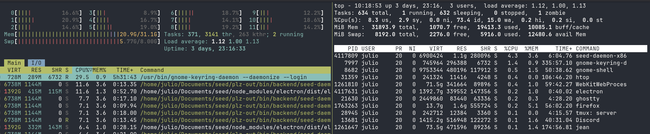
Sort by MEM% to catch renderer leaks fast, by %CPU to catch runaway loops.
Reading CPU%: by default both tools show _Irix mode_ — CPU% is per core, so on an 8-core machine 100% means one full core pinned, and 200% is two cores, i.e. 25% of total capacity. If you'd rather see it normalized to total capacity (so the same 200% shows as 25%), press Ctrl+I in htop to toggle Irix mode off.
2. The local /debug page
The embedded daemon exposes an HTTP debug surface on localhost. The port depends on the build:
Production builds: http://localhost:56001/
Dev builds: http://localhost:58001/
Opening the root shows an index page with links to every debug handler:
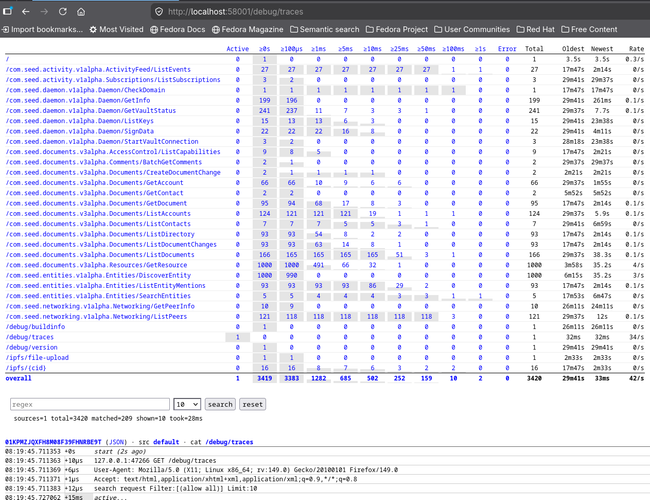
The ones that matter day-to-day:
Debug/Vars — live expvar counters per subsystem (seed_auth, seed_discover_mount, seed_entity_resolution, seed_merkle_clock, …). Refresh the page to watch counters tick; useful for spotting hot paths or stuck syncing.
Debug/Pprof — Go's profiler. Grab a snapshot from a terminal: go tool pprof http://localhost:56001/debug/pprof/heap (or /profile for a 30s CPU sample). Use top / web inside pprof to find the allocators.
Debug/Traces — OpenTelemetry span viewer. Every gRPC call and background job emits a span with timing. Pick a family to jump to slow ops, expand a span to see its children and their durations.
Debug/Logs — tail of the application log, same content as stderr but browsable and filterable.
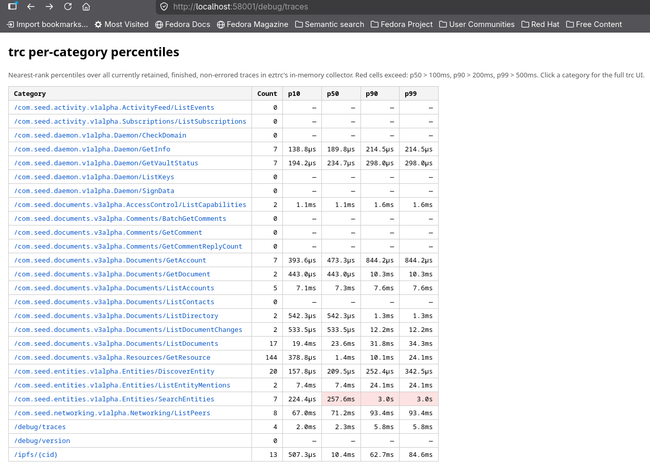
Per-category percentiles
The traces page also exposes a per-category percentiles table (count, p50, p75, p90, p99, p99.9, p99.99, max) aggregated across every recent span. We highlight the critical paths — rows whose tail latency (p99 and above) blows past its budget are coloured red/orange, so regressions jump out at a glance without having to scroll through individual spans. Click a category to drill into its traces.
3. A typical trace-a-problem loop
Reproduce the slow action in the UI.
Open Debug/Traces, scan the percentiles table for anything highlighted, and sort by duration — the long ones are your targets.
Drill into a span to see which sub-op took the time (DB, p2p fetch, blob verify, etc.).
If the hot spot is CPU-bound, follow up with a 30s pprof profile. If it's a counter spike, cross-check Debug/Vars.
Three links and a terminal — grab these first before reaching for heavier tooling.
Daemon Profiler
Run ./scripts/profile-daemon.ts while the desktop app is running
Do you like what you are reading? Subscribe to receive updates.
Unsubscribe anytime