



a) User click Join
b) User creates a new message and join flow is prompt
Acceptance Criteria
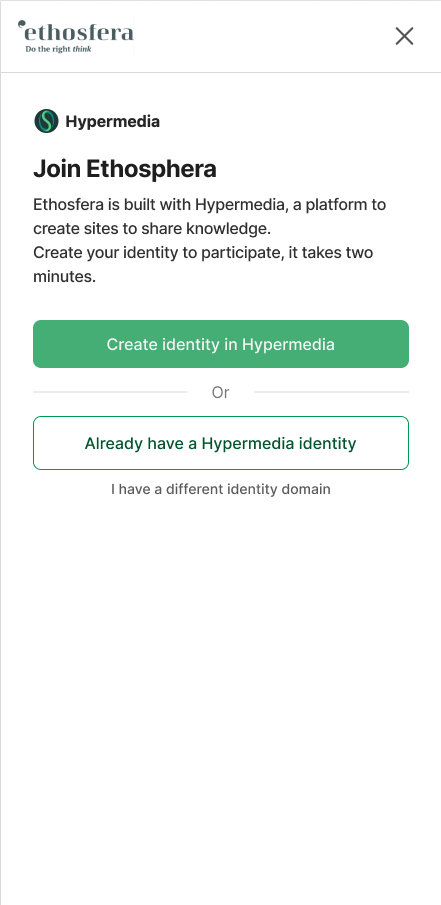
Screen 1 — Entry (Ethosfera)
The entry screen remains within the Ethosfera site UI.
The screen acknowledges Ethosfera by name first, then introduces Hypermedia as the underlying identity layer (in one or two plain sentences, without a lecture).
The copy answers the implicit question "what is Hypermedia?" before asking the user to do anything.
Three paths are presented: Create my identity, I already have a Seed identity, I have an identity from another site.
Keep reading option is available by closing the dialog.
Clicking "Create my identity" transitions the user into the Seed Hypermedia environment in a new window without feeling like an abrupt jump.
Screen 2 — Email (Hypermedia)
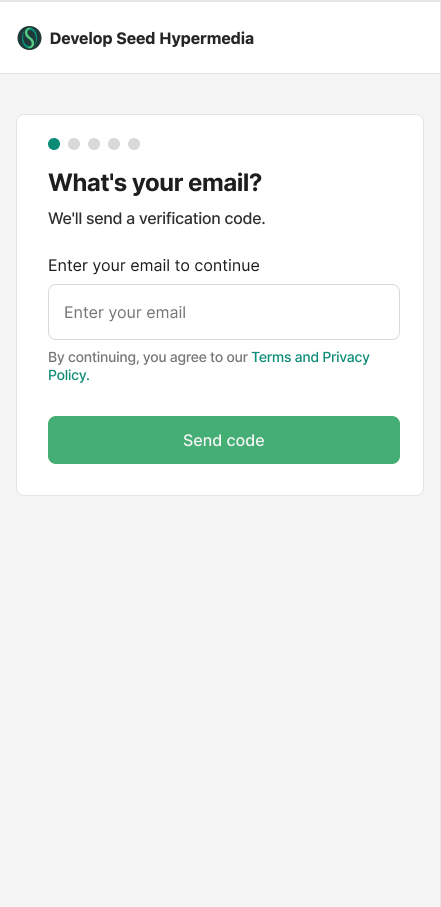
The user is now inside the Hypermedia environment, clearly branded with its own UI and background.
No new concepts are introduced here. We don't use the term "Vault" but "Identity", easier to understand for the user.
A progress stepper shows 4 steps: Email, Verify, Passkey, Profile.
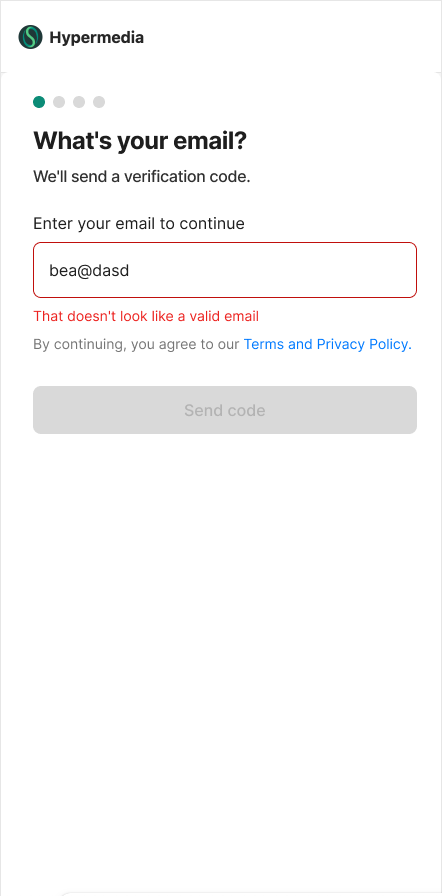
Email field validates correct format before submission.
Terms of service and Privacy policy links appear below the Send code button (we need to create this page).
Submitting triggers a 4-digit verification code to the provided address.
The button is disable until the email added is a correct
Screen 3 — Verify Email
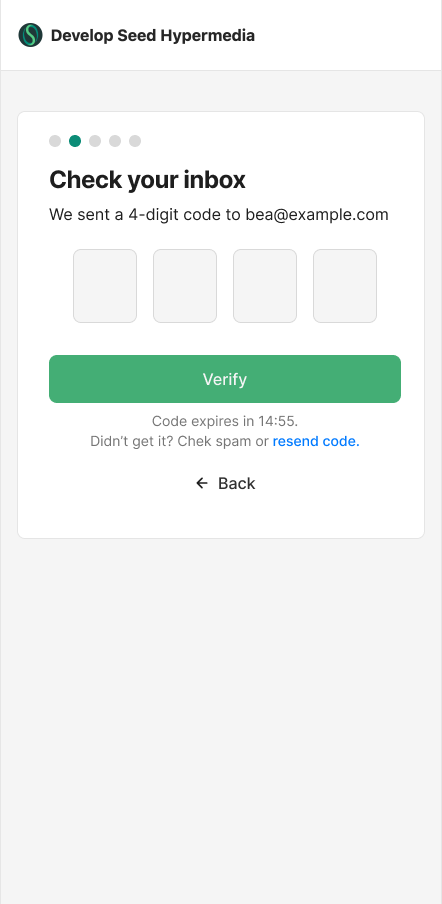
Four individual input boxes are shown for the verification code
The email address is displayed so the user can confirm it
A Resend code link is available without refreshing the page with the time left
Correct code automatically advances to the next step
Incorrect code shows a clear, non-technical error message in red bellow the inputs: "Wrong code. Try again."
Screen 4 — Passkey
The screen explains passkey in plain, friendly language
A "What is a passkey?" link is available for unfamiliar users and opens a document in Hypermedia website (We need to create this page, let's copy paste some article)
Passkey creation uses the device's native biometric or PIN prompt
On success the user advances automatically to Profile
We need to review potential errors here to create copy
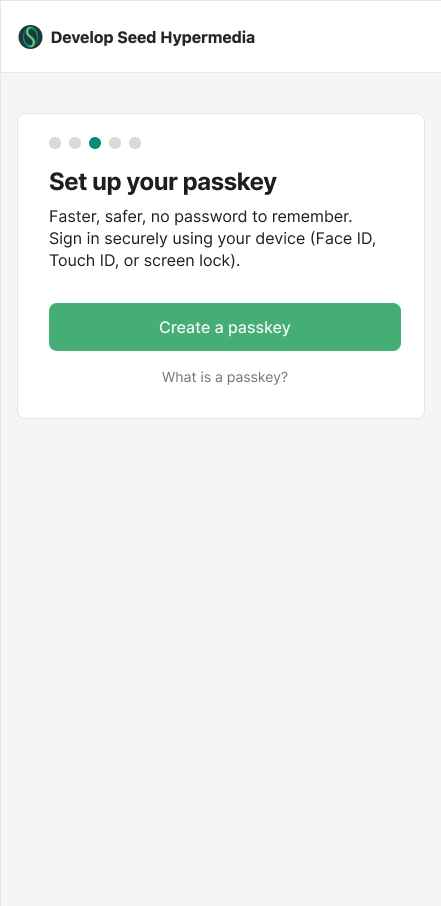
Screen 5 — Profile
User can enter a display name (required)
User can optionally upload a profile photo
Photo upload can be skipped or completed later in Account Settings
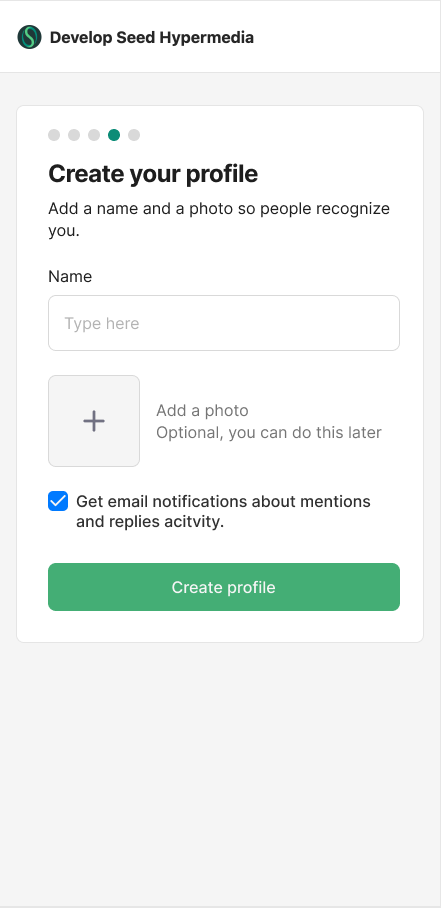
Screen 7 — Done
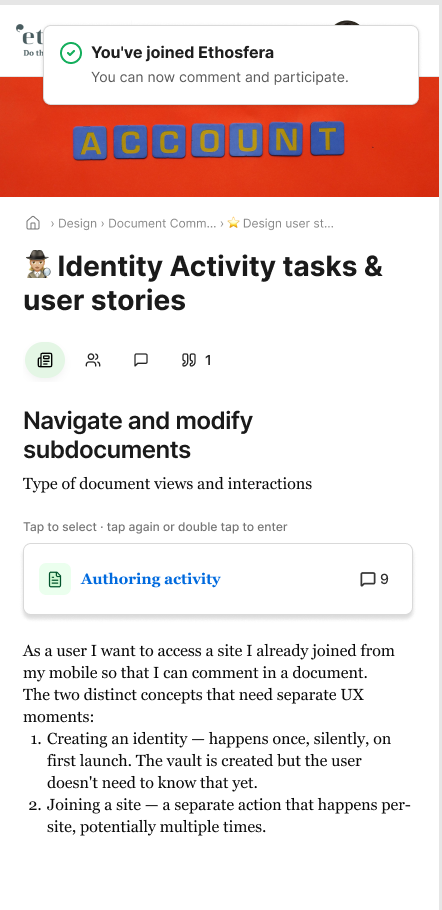
Confirmation screen shows a toast with joining confirmation that disappears after 5 seconds. Message changes depending of where the user comes from: a) Join b) posting a message
Basic Flow
User lands on Ethosfera and sees the join nudge within the site
User clicks "Create my identity" - transitions to Seed Hypermedia
User enters email and clicks Send code
User enters 4-digit code from inbox — advances automatically on success
User creates a passkey using device biometrics or PIN
User enters display name and optionally uploads a photo
User clicks "Start participating" and lands back on the site as a joined member
Joined confirmation is displayed
Edge Cases
⚠️ If the email format is invalid, an error appears in red bellow the input: "That doesn't look like a valid email"
⚠️Verification email not received → Resend code link activates after 60 seconds
⚠️ Incorrect verification code entered → friendly error, no lockout on first attempt
⚠️ Verification code expires → option to request a new code without losing email entry
⚠️ If the email is already linked to an existing Seed identity, the form does not create a new account, instead it prompts the user to sign in, with a text: "Welcome back"
Passkey
⚠️ Device does not support passkeys → fallback method offered, user not blocked (password needs to be developed later)
⚠️User cancels the biometric prompt → returns to passkey screen, can retry
⚠️ Passkey creation fails due to device error → retry option shown
Clear error messages: avoid: "Failed to fletched" "Invalid Handoff token"
Profile
⚠️ User submits without a display name → validation error, photo remains optional
⚠️ Unsupported image format or file too large → clear error with accepted formats and size limit
Navigation
⚠️Browser back button mid-flow → returns to previous step without losing progress
⚠️Mobile device with no biometric sensor → passkey falls back to device PIN
⚠️ User tries to create second identity with same email → redirected to sign-in, duplicate prevented
Implementation Review Log

Do you like what you are reading? Subscribe to receive updates.
Unsubscribe anytime