




Acceptance criteria
The editor can select any text (word, phrase, sentence) and add a comment via the horizontal inline toolbar.
The editor can click any text block and add a comment via the vertical action strip.
In read context, the user can click any focused block and add a comment to the whole block via the vertical action strip.
In read context, the user can select any text (word, phrase, sentence) and add a comment via the vertical action strip.
In read mode, the user can select any text (word, phrase, sentence) and add a comment via the vertical action strip.
Media (videos & images) support click-to-comment/link via the vertical action strip. Editors get additional contextual options based on the selected media type.
Documents support click-to-comment/link via the vertical action strip. Editors get additional contextual options based on the selected media type.
Comment threads are ancsdhored, they stay attached to their text or block.
Multiple comments can exist on the same block without overlapping.
Comment counts are visible in the right margin without focusing the block.
Any user who joined the site can reply to a thread.
The editor can select any text (word, phrase, sentence) and add a comment via the inline toolbar.
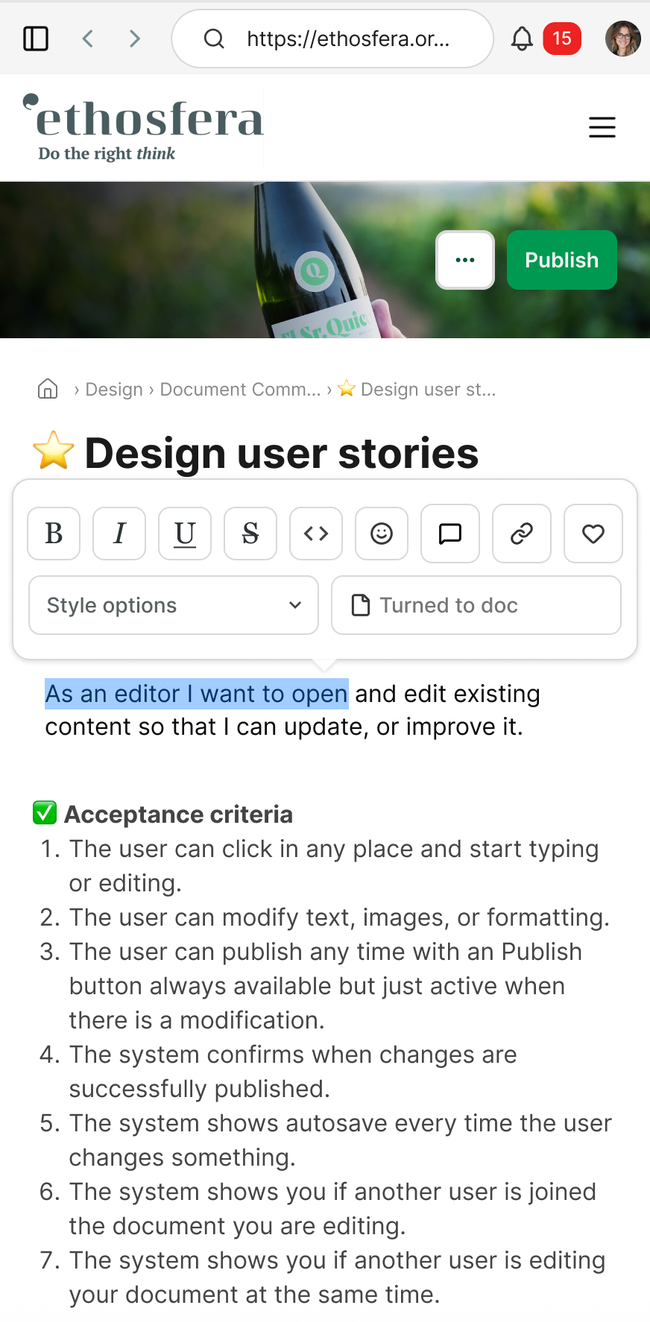
The editor can click any text block and add a comment via the vertical action strip
On read context the user can Click any focused block and add a comment to the whole block via the vertical action strip.
On read context the user can select any text (word, phrase, sentence) and add a comment via the vertical action strip.
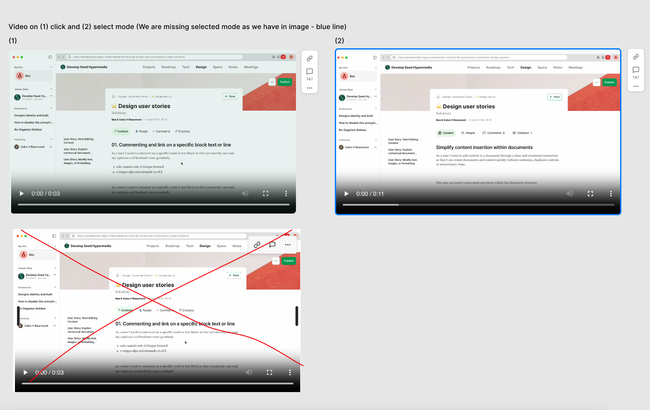
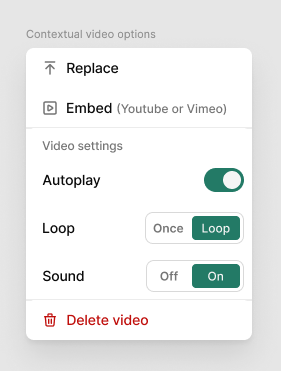
Media (videos & images) support click-to-comment/link via the vertical action strip. Editors get additional contextual options based on the selected media type.
We move video settings to the 3 dots.
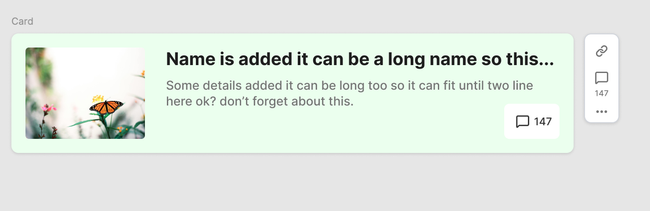
Documents support click-to-comment/link via the vertical action strip. Editors get additional contextual options based on the selected media type.
Basic flow
Reader select word or phrase
Editor selects a word or phrase or a text block → inline toolbar appears → taps Comment
Discussion panel opens on the right anchored to the selection → user types and submits
User selects a word or phrase → inline toolbar appears → taps link
Link is copy to be pasted (a confirmation tooltip appears)
Do you like what you are reading? Subscribe to receive updates.
Unsubscribe anytime